
Title II Compliance
Digital Content Accessibility
Understanding the New ADA Title II Digital Accessibility Requirements
In April 2024, the U.S. Department of Justice published new regulations requiring state and local government entities, including public universities, to ensure their websites and digital content meet accessibility standards. These rules set clear technical requirements for the first time, establishing WCAG 2.1 Level AA as the mandatory baseline for compliance.
These updates ensure that digital services and content are perceivable, operable, understandable, and robust for people with disabilities, creating equitable access across communities. UCLA must come into compliance with these regulations starting April 24, 2026.
What's Changing?
The DOJ’s rule now requires digital services to meet WCAG 2.1 AA.
The updated rule broadens the scope of what must be accessible, covering:
- All websites and browser‑based platforms
- Software and applications, regardless of whether they are password‑protected
- Academic and instructional digital content
- Digital documents (PDFs, slides, Word files, spreadsheets)
- Emails
- Mobile apps
- Social media content
- Third‑party vendor platforms and tools
These requirements ensure consistent accessibility across modern digital ecosystems. When websites and other digital content are not accessible, they can create barriers for people with disabilities.
- Example: Individuals who are visually impaired may use a screen reader to deliver visual information as speech. If a website, PowerPoint presentation, social media post, etc. does not include text describing the image (called “alt text”), these individuals may have no way of knowing what is in the image because a screen reader cannot “read” an image.
Content Specific Instructions
The UCLA Teaching & Learning Center has developed a website to assist instructors with making their courses accessible. Much of that content is also applicable to work outside the classroom. Visit their website to learn more. Additional details on content-specific requirements are below.
Instructional Material
All instructional material accessible to students must follow Title II accessibility guidelines. This includes PowerPoint presentations, word documents, and other other content/information shared with students.
The UCLA Teaching and Learning Center (TLC), Bruin Learn Center of Excellence (CoE), Disabilities and Computing Program (DCP), and additional campus partners are working to enhance our digital accessibility resources for instructors in alignment with UCLA and UC commitments to inclusive excellence. The university has also established the Digital Accessibility Steering Committee to provide strategic direction, align efforts across campus, oversee institutional risk mitigation, and advise UCLA leadership on resource allocation and prioritization in support of digital accessibility.
The UCLA Teaching and Learning Center has developed a website to assist instructors with ensuring Title II compliance. Instructors should review the website for a variety of training and support resources:
Page Structure for Documents and Webpages
Page structure is a critical basic component of digital accessibility that allows users of assistive technologies – screen readers, magnifiers, keyboard navigation, etc. – to efficiently understand and navigate digital content in documents and on websites. Page structure utilize data tags within word processing applications (MS Word, etc.) and website platforms to create a content hierarchy. This hierarchy allows screen reader users to quickly scan and jump between sections.
What you must do:
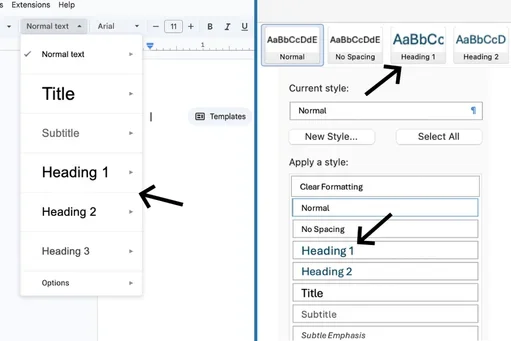
Use Proper Heading Hierarchy
- Pages should be organized with meaningful headings (H1 through H6) that reflect content structure. All word processing applications have header formatting available by simply clicking the formatting option when the heading or sub-heading text is highlighted.
- Use one H1 for the main page topic
- Nest subsections logically (H2, then H3, etc.)
- Do not skip heading levels
Follow a Logical Reading Order
- Content must be presented in an order that makes sense when read aloud from top to bottom. This order should match the visual layout so that users navigating by keyboard or screen reader receive the same information as sighted users.
Accessible page structure is foundational. Without it, even well‑written content and accurate alt text may be difficult or impossible for some users to access.
The UCLA Teaching and Learning Center has extensive instructions on creating accessible page structure.
PDF Documents
In general, PDFs can be the most challenging when it comes to digital accessibility, so it's best to avoid using PDFs wherever possible. Only remediated PDFs that are legally required to be available in that format and meet accessibility standards (proper tags, correct reading order, searchable text/OCR, meaningful alt text for images, and bookmarks where appropriate) may be uploaded to the website or used across the school.
You can choose to make your PDFs accessible by following the instructions from Adobe: Create and verify PDF accessibility (Acrobat Pro)
PDF remediation is a work intensive and time consuming process, so it is worth searching for an alternative accessible version before embarking on remediation. Adobe provides an in-depth recorded webinar on PDF remediation. Where possible, convert PDF content to a native web page or other platform type (e.g. Box Document, Google Document, Word, etc.) to improve accessibility, discoverability, and mobile usability. PDFs that are needed as printable documents/forms should be added to Box and linked from there.
NOTE: PDF documents generated through scanning physical content is never compliant.
The UCLA Teaching and Learning Center has extensive instructions on how to make PDFs accessible, whether for instructional material or otherwise.
Images (Photography, Graphics, Icons, Charts)
Images used across any/all digital platforms managed or disseminated by the school must include alt (alternative) text describing the image itself and/or the intent of the image for any person(s) accessing the content.
What you must do:
- Provide alt text for all meaningful images used in any digital content that is shared on the web, via email, or otherwise.
- Refrain from using images that are primarily text (e.g., flyers, posters, etc.), tables or images that contain QR codes.
- For complex images (graphs, charts), supply a long description adjacent to the image or via an accessible link.
Writing alt text:
Describe the purpose, not just the picture
- Alt text should communicate why the image is there and what the user needs to know from it.
Example:
- Not helpful: “Person smiling.”
- Useful: “Nursing student administering a vaccination during clinical training.”
Keep it concise but meaningful
- Aim for context-rich descriptions in 1–2 sentences. Screen readers will stop at punctuation naturally.
Don’t start with “Image of…”
- Screen readers already announce it’s an image. Jump straight into the description.
Capture text that appears in the image
- If an image contains text essential to understanding, the same text must appear in the alt text or nearby.
Example:
- For a flyer: include the event name, date, and essential details.
- For a chart: summarize the key trend, not every datapoint.
NOTE: Whenever possible, do not use images that contain excessive text.
Alt text must be added to all images when they are used in digital content. Every application (MS Word, PPT, Outlook, web platform) provides the functionality to add alt text. Below are short videos showing you how to add alt text across various platforms. This process should be similar across any digital application you may be using.
PowerPoint:
Outlook:
BruinLearn:
Word:
Videos and Multimedia
Multimedia must be perceivable to users with visual or auditory disabilities. WCAG 2.1 AA requires captions, transcripts, and accessible players.
What you must do:
- Provide captions for all prerecorded videos.
- All videos must have accurate captions and a transcript. Machine-generated captions alone are not sufficient and must be reviewed and corrected by a human.
- Provide audio descriptions for videos where essential visual information is not available through dialogue.
Please contact the Director of Communications with any specific questions or concerns about your use-cases.